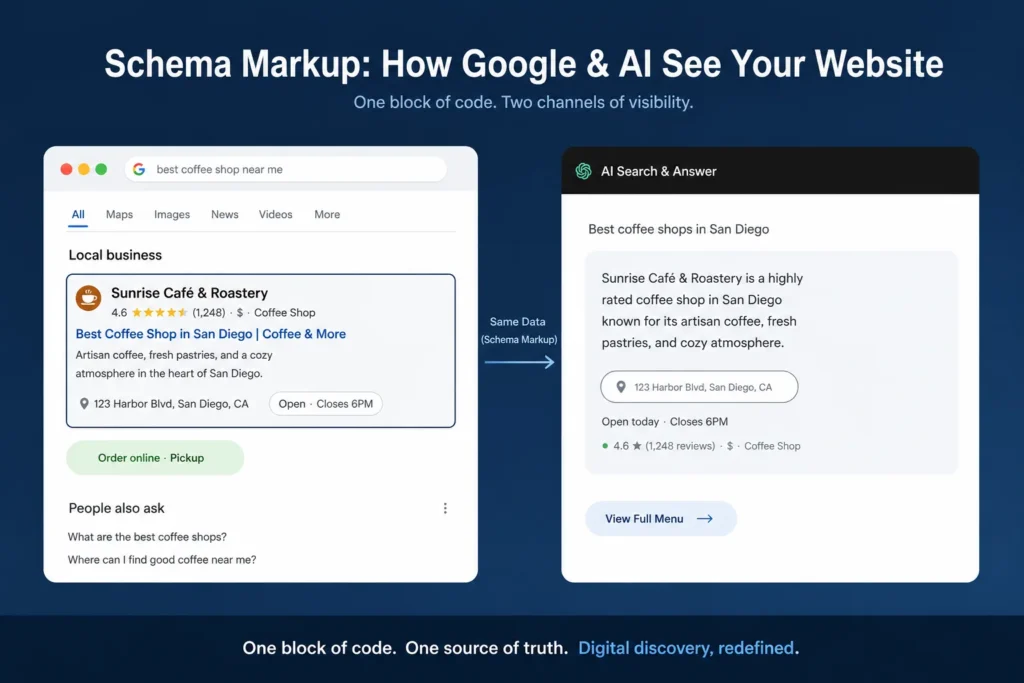
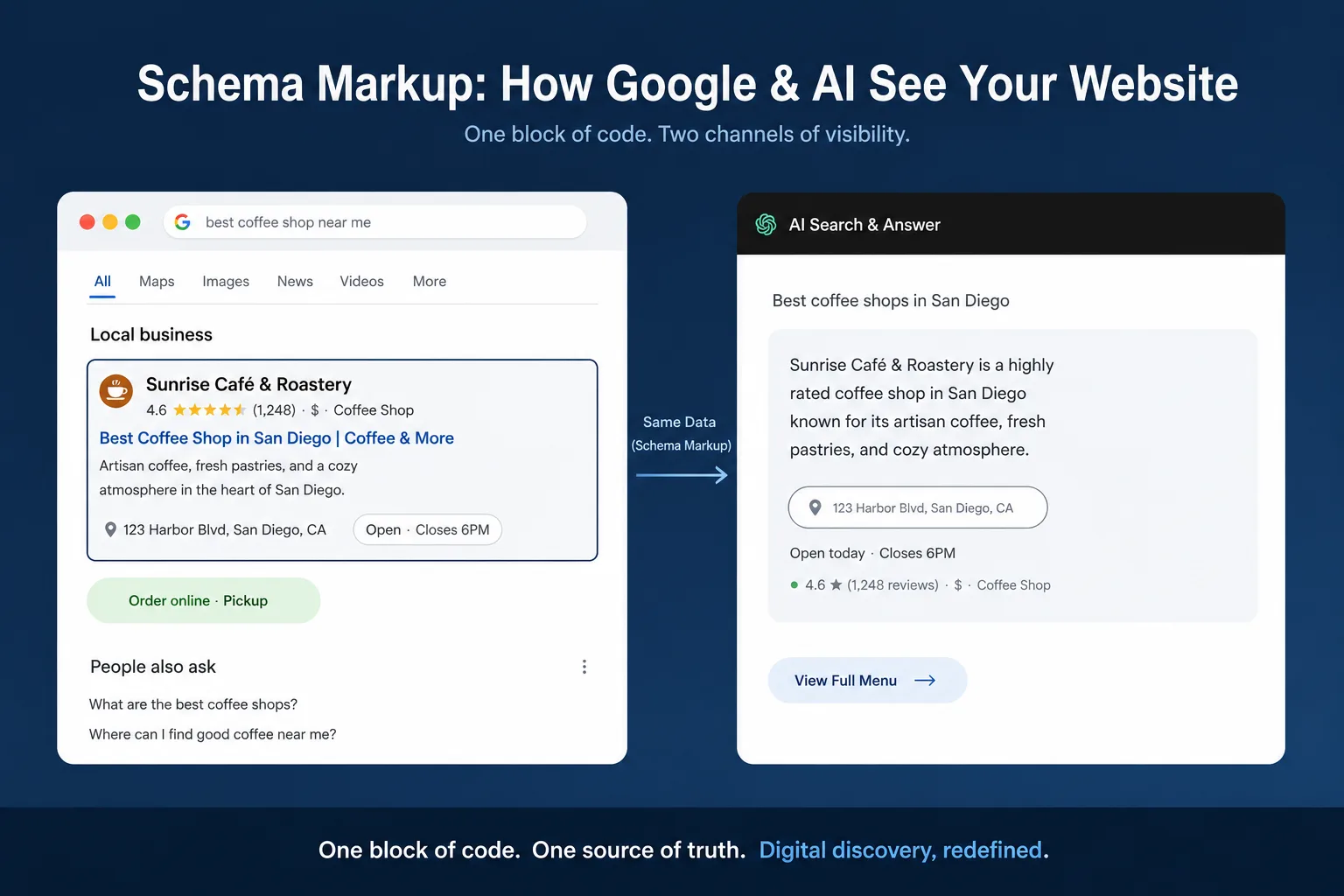
Schema markup is code you add to your WordPress pages that tells Google exactly what your content means, not just what it says. Get it right, and your business listing, blog post, or course page can show up in search results with star ratings, FAQs, breadcrumbs, or business details, instead of a plain blue link.
For local businesses in Mohali, Chandigarh, and across Punjab competing for the same handful of keywords, this is one of the few technical SEO levers left that most competitors still haven’t pulled.
This guide walks through exactly how to add it to a WordPress site, step by step, whether you use a plugin or prefer to place the code yourself.
Table of Contents
What Is Schema Markup, and Why Should a WordPress Site Owner Care?
Schema markup is a standardized code format, based on the vocabulary at schema.org, that describes the content of a page in a language search engines can parse directly. Instead of Google guessing that a page is about a digital marketing course from Mohali based on scattered text, the schema states it outright: course name, provider, location, price, duration.
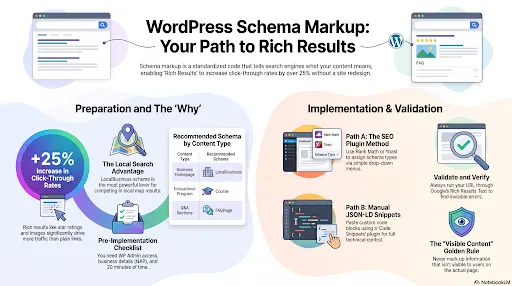
Google’s own documentation is direct about the payoff. Sites that added structured data to their pages have measured meaningfully higher click-through rates and engagement – in some documented cases, click-through rate improvements in the double digits after rich results started appearing, along with longer time on page and higher interaction rates on enhanced pages. None of that requires a redesign. It requires code that already matches what’s on your page.
Looking for the best digital marketing course in Mohali? Learn SEO, Google Ads, Meta Ads, AI Marketing, and more through practical training, live projects, and placement support at Digital Discovery Institute
Did You Know? Google has published case studies where recipe, review and product pages that qualified for rich results (star ratings, images, extra page links) saw click-through rates rise by well over 25% compared with plain listings on the same site – schema didn’t change the ranking position, it changed how many people clicked once they saw it. |
Here you can read the complete Google overview on the use of Schema and implementation: Introduction to structured data markup in Google Search
Which Type of Schema Should You Implement First?
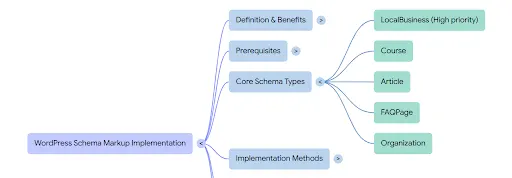
Not every schema type is worth your time. For a small business or training-institute style WordPress site, five types cover almost every practical use case:
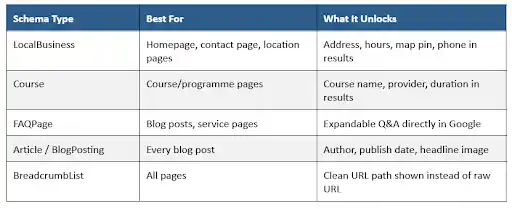
If you run a local business website – a training institute, clinic, salon, retail store, or service provider – start with LocalBusiness schema on your homepage and contact page. It has the broadest impact because it feeds directly into Google Business Profile matching and local map results, which is exactly where searches like “digital marketing course in Mohali” get decided.
Before You Start: What You'll Need
- Admin access to your WordPress dashboard
- An SEO plugin already installed (Rank Math or Yoast SEO – both have free schema support)
- Your exact business details: legal name, address, phone number, opening hours, and a logo image URL
- 15–20 minutes, and a page that isn’t currently live-serving heavy traffic, in case you want to test first on staging
Step-by-Step: Adding Schema Markup on WordPress
There are two reliable paths. Method A uses a plugin and needs no coding. Method B places raw JSON-LD code and gives you full control. Most business owners only need Method A; freelancers and in-house marketers managing multiple client sites often prefer Method B because it’s portable across themes.
Method A: Using an SEO Plugin (Rank Math or Yoast)
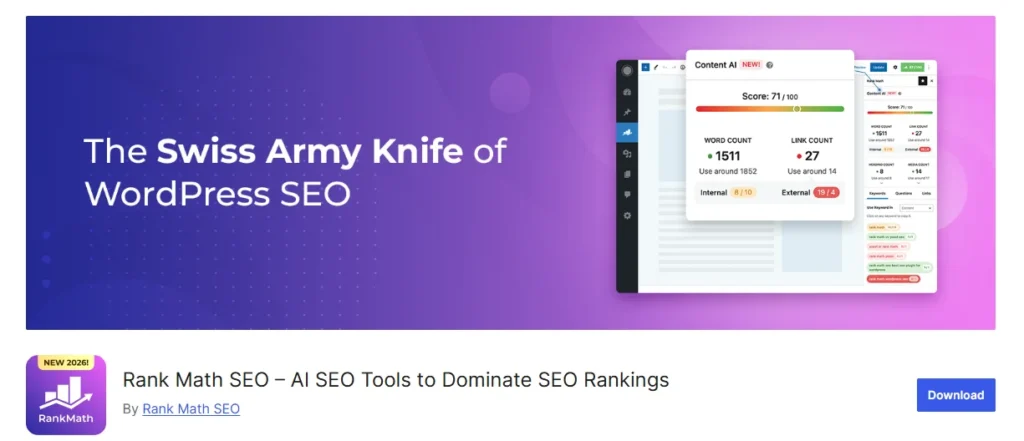
Step 1: Install and activate a schema-capable plugin
From WordPress Dashboard → Plugins → Add New, search for “Rank Math SEO” (recommended for its dedicated Schema Generator) or “Yoast SEO.” Activate it and complete the setup wizard, which asks for your business type, name, and logo.
Step 2: Set your organisation-wide schema
In Rank Math, go to Rank Math → Titles & Meta → Local SEO / Knowledge Graph. Choose “Organization” or “Local Business,” then fill in your business name, address, phone number, and opening hours exactly as they appear on Google Business Profile – mismatches here confuse Google rather than help it.
Step 3: Assign schema type per page
Open the page or post you want to mark up. Scroll to the Rank Math panel below the content editor, click the “Schema” tab, and choose a template – LocalBusiness for your contact/location pages, Course for programme pages, Article for blog posts, FAQPage for pages with a Q&A section.
Step 4: Fill in the schema fields
Rank Math auto-fills some fields (title, image, author) from the page content but leaves business-specific fields for you – price, duration, address, rating. Complete every field that’s relevant; partially filled schema is often ignored by Google rather than partially used.
Step 5: Publish and repeat
Update the page. Repeat Step 3–4 for every course page, location page, and blog post you want eligible for rich results. Yoast SEO follows the same logic under the page’s Yoast panel → Schema tab, with slightly fewer built-in templates than Rank Math.
Method B: Adding JSON-LD Manually (No Plugin Schema Feature)
If your plugin doesn’t support the schema type you need, or you manage a custom theme, you can place JSON-LD code directly.
Step 1: Install a code snippets plugin
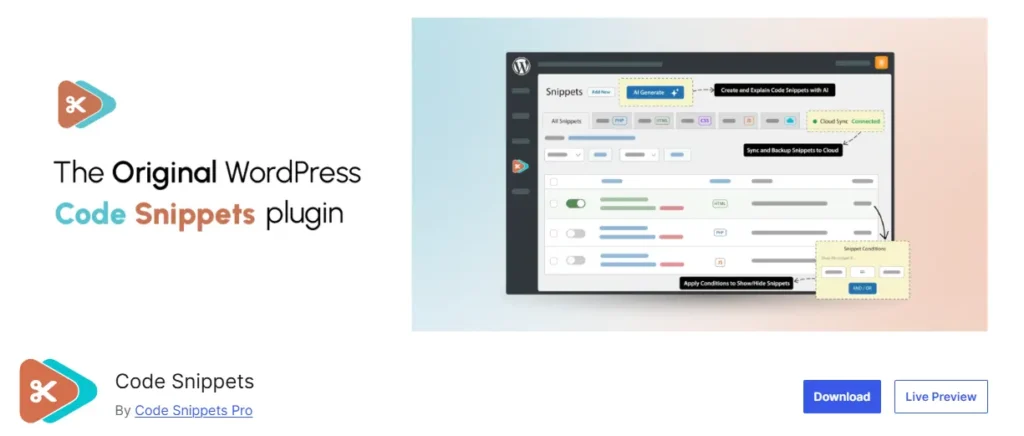
theme’s functions.php directly – a theme update can wipe it out.
Step 2: Write the JSON-LD block
Build your schema in JSON-LD format. Here’s a working LocalBusiness example for a training institute:
<script type=”application/ld+json”> { “@context”: “https://schema.org”, “@type”: “EducationalOrganization”, “name”: “Your Institute Name”, “url”: “https://www.yourdomain.com”, “logo”: “https://www.yourdomain.com/logo.png”, “address”: { “@type”: “PostalAddress”, “streetAddress”: “Your Street, Sector, Mohali”, “addressLocality”: “Mohali”, “addressRegion”: “Punjab”, “postalCode”: “140301”, “addressCountry”: “IN” }, “telephone”: “+91-XXXXXXXXXX”, “openingHours”: “Mo-Sa 09:00-18:00” } </script> |
Step 3: Insert the snippet on the right page
In Code Snippets, create a new snippet, paste the JSON-LD block, set the type to “HTML” (or “Content” depending on plugin version), and set it to run only on the specific page or in the site-wide footer if the details apply to every page (as with Organization schema).
Step 4: Save and clear cache
Save the snippet, then clear any caching plugin (WP Rocket, LiteSpeed Cache, etc.) and your CDN cache if you use one. Cached pages will keep serving the old HTML without the new script until cleared.
Pro Tip Keep one JSON-LD block per schema type per page. Stacking multiple conflicting LocalBusiness or Organization blocks on the same page is one of the most common reasons Google’s testing tools throw “duplicate field” warnings. |
How to Validate Your Schema Markup
Never assume the code works just because the page looks unchanged – schema is invisible to visitors by design.
- Open Google’s Rich Results Test and paste your page URL
- Check that the correct schema type appears with no red errors (yellow warnings for optional fields are usually fine)
- In Google Search Console, use the URL Inspection tool to confirm Google has actually crawled the updated version
- Wait 1–2 weeks, then check the Enhancements reports in Search Console for that schema type to see if pages are being registered as eligible.
Rich results are never guaranteed just because the schema validates – Google decides independently whether to display the enhanced result. Correct markup only makes a page eligible.
Common Mistakes to Avoid
1) Marking up information that isn’t visible on the page – Google’s own guidelines treat this as a policy violation, not just bad practice.
2) Copy-pasting a competitor’s schema and forgetting to change the business name, address, or URLs.
3) Using FAQPage schema on a page with no actual visible FAQ content.
4) Letting a caching plugin serve an old version of the page indefinitely after a schema update.
5) Adding the same schema type twice – once via plugin, once via manual snippet – creating conflicting duplicate blocks.
Expert Insight
Having reviewed dozens of course and business pages built on WordPress for institutes across Punjab, the single biggest gap isn’t missing schema – it’s incomplete schema. A LocalBusiness block with no opening hours or an Organization block with a broken logo URL rarely earns a rich result. Fill every field schema.org marks as recommended, not just required, and re-test after every content update.
Schema markup is one piece of technical SEO, and it works best alongside the fundamentals – solid on-page content, clean site structure, and consistent local signals.
If you’re building this skill set from scratch, DDI’s SEO training course covers structured data, technical audits, and on-page SEO as part of a hands-on curriculum, alongside broader coverage in the full digital marketing syllabus. For readers based in the region, our breakdown of SEO training options in Mohali and what to look for in a Chandigarh SEO course go deeper into how technical topics like this one are actually taught.
Whichever path you take – plugin or manual – the goal is the same: describe your page to Google in a language it can act on immediately, instead of hoping it figures things out on its own.
Ready to start your digital marketing career? Join Digital Discovery Institute for hands-on training, industry-recognized certifications, and placement assistance in Mohali.
Frequently Asked Questions (FAQs)
Do I need to know how to code to add schema markup on WordPress?
No. Plugins like Rank Math and Yoast SEO generate valid schema through simple form fields. Manual JSON-LD is only necessary for schema types your plugin doesn’t support.
Will schema markup improve my Google ranking?
Schema is not a direct ranking factor. It affects how a result looks and how likely someone is to click it, which can indirectly improve traffic and, over time, engagement signals.
How long does it take for a schema to show up in Google search results?
Typically a few days to a few weeks after Google recrawls the page, and only if the page qualifies under Google’s feature-specific guidelines – there’s no fixed timeline.
Can I use the same schema plugin settings for every page?
Organization-level details (name, logo, address) apply site-wide, but page-level schema – Course, Article, FAQPage – needs to be set individually for each page based on its actual content.
What's the difference between Rank Math and Yoast for schema?
Rank Math offers more built-in schema templates (Course, Event, Recipe, Software, and more) in its free version, while Yoast covers the core types (Article, LocalBusiness, FAQ) and reserves some advanced templates for its premium tier.
Is JSON-LD better than Microdata or RDFa?
Google accepts all three formats equally, but recommends JSON-LD because it sits in a single script block rather than being woven through the visible HTML, making it easier to maintain without accidentally breaking page design.